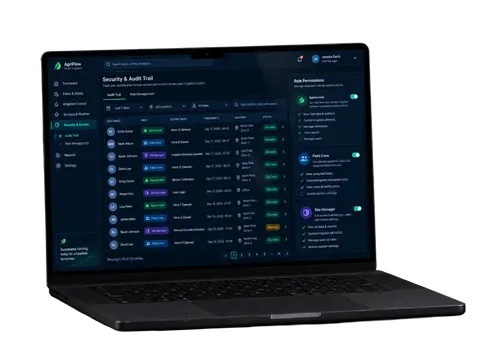








Cursor AI is a code editor built on VS Code that can autocomplete your code, answer questions about your project, and run agents that change many files at once. By late 2026, though, it’s less an editor with AI added on and more an agent product wearing a VS Code skin. That changes the question worth asking. It’s no longer “is Cursor good?” but “how much should you let it do on its own?” Whether it actually helps a team depends less on the model behind it and more on the team: how clearly tasks are scoped, whether there are tests to catch mistakes, and whether someone reviews every change. This guide covers what each feature does in practice, how to set it up, what it really costs, including what changed after Cursor’s acquisition by SpaceX, and how it compares with other tools.
Key Takeaways
- The three features hand over different amounts of control. Tab autocomplete suggests the next few lines, and you accept or ignore each one. Chat explains code and drafts changes, but you decide what to apply. Agents plan the work, edit several files, and run commands, so you’re reviewing a finished diff instead of writing as you go.
- Start with Tab and chat, and save agents for well-scoped tasks. Agents work best when the task is clear, and the project has tests that can catch their mistakes. On vague tasks in untested code, they can produce a lot of work that someone then has to untangle.
- Pricing: The Free plan costs nothing. For individuals, Plus is $8/month, Premium $30, Super $100, and Ultra $200. Teams seats cost $30, $100, or $200 per user per month, and Enterprise is custom.
- Usage has limits. Every paid plan includes a weekly pool of usage for Cursor’s own models. Third-party models like Claude or GPT start at Premium and are paid from prepaid credit at API prices, so heavy agent work can cost more than the plan price.
- Treat agent output like a pull request from a new teammate. Read the diff and run the tests before you merge. Cursor speeds up writing code, but it doesn’t replace review.
What Is Cursor AI?
Cursor AI is a code editor built on VS Code that understands your whole project, so its AI features know your code. People usually mean one of two things when they talk about it: the editor itself, or the AI coding tool inside it.
Cursor AI Code Editor and IDE: An AI-Native Editor for Everyday Coding
Unlike AI extensions added to existing code editors, Cursor is a standalone coding environment built around AI. Its traditional IDE is based on VS Code, so developers can continue using familiar editing tools, keyboard shortcuts, and supported extensions. With Cursor 3, the experience goes beyond the editor: the new Agents Window lets developers manage AI coding tasks across repositories and environments without constantly switching between files and terminals. Both interfaces remain available, allowing developers to move between hands-on coding and agent-driven workflows.
Cursor AI Coding Tool: How It Works
Cursor can work across your whole project, but it doesn’t read every file in advance or send the entire repository with each request. When it needs context, it searches for it. For exact matches like a function name or an error message, it uses Instant Grep, a fast search that runs on your machine. For broader questions, it can send an Explore subagent to look through many files and bring back only what’s relevant. That’s how it finds files you haven’t opened, follows imports and function calls, and makes changes across several files in one go. According to Cursor, Composer 2 and Composer 2.5 are both built on Moonshot AI’s open-source Kimi K2.5 model.
Cursor AI Features: What the AI Code Editor Can Do in 2026
These features are what set Cursor apart from a basic autocomplete plugin. We’ll start with the ones where AI does the least and work up to the ones where it does the most.
Tab Autocomplete and AI-Assisted Code Editing
Tab goes further than finishing the line you’re on. Based on your recent edits, it offers code suggestions that can span several lines or an entire function. Once you accept a suggestion, Cursor can predict where you’ll want to edit next.
For targeted changes to existing code, select the relevant lines and press Cmd/Ctrl+K or Cmd/Ctrl+L to send them to Agent. The older standalone Inline Edit workflow has been replaced by this approach. You can then describe the change in natural language, such as “validate discount percentages and round the result to two decimal places.” Agent uses the selected code as context, applies the changes, and displays the edits in a diff view for review.
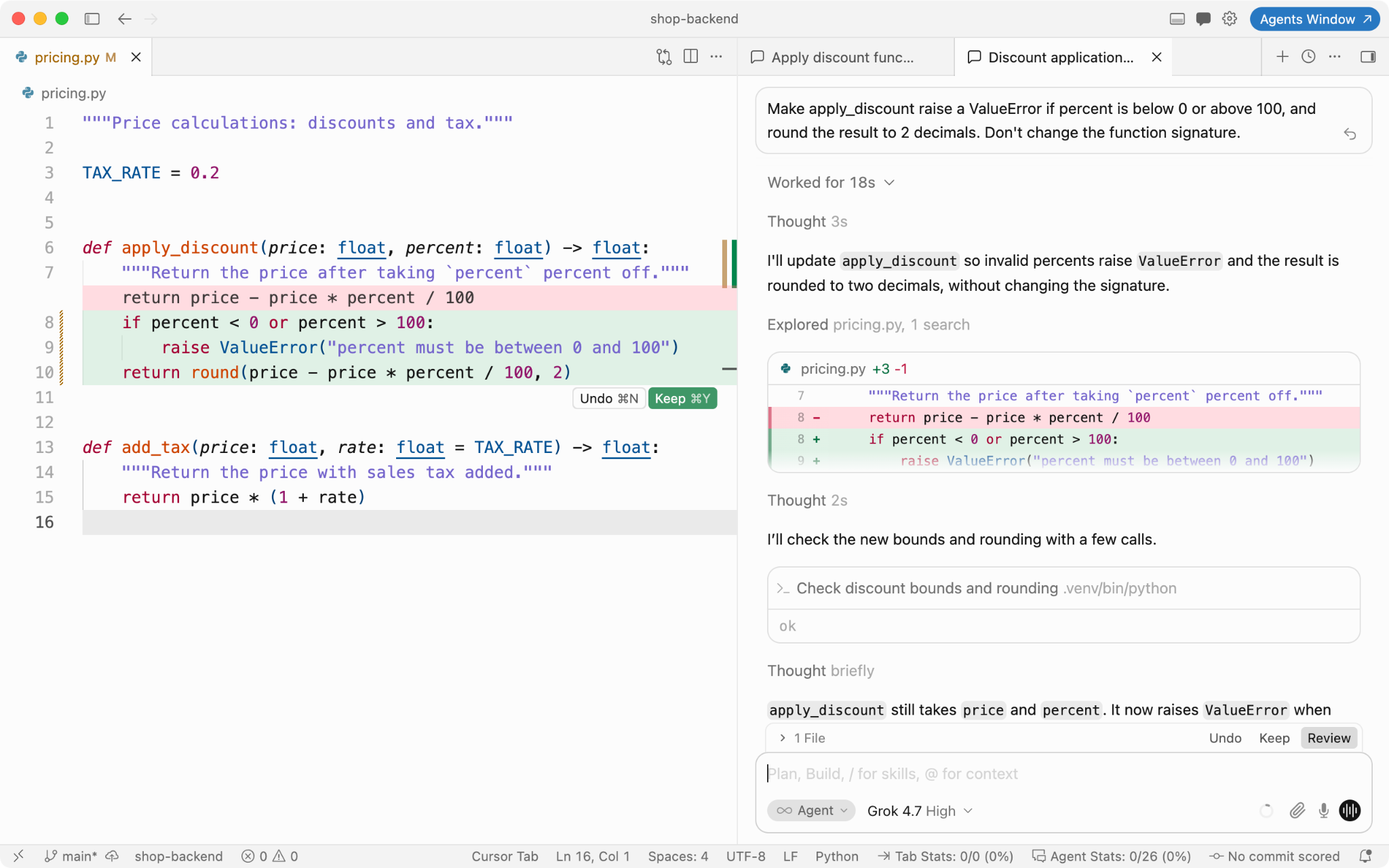
Agent edits apply_discount and highlights removed and added lines.
Review the changes in the diff view and reject anything that doesn’t look right. Unlike the old Inline Edit workflow, Agent applies edits as it works, so reviewing the diff is an important part of the process. For repetitive tasks, boilerplate code, and quick prototypes, this can save time without requiring you to write every line manually.
Chat That Knows Your Code
The chat panel knows your codebase. Ask “where is the payment retry logic defined?” and you’ll get an answer based on your actual code, not a generic guess. That’s the big difference from copying snippets into a separate AI chat window. You don’t have to explain your project first. Cursor finds the relevant code itself..
Agent Mode
Give Agent Mode a task, and it can search your codebase, edit multiple files, run terminal commands, and display changes for review. Unlike a preview-only tool, Agent can apply code changes directly to your workspace without asking for approval each time. Sensitive actions may still require your confirmation, depending on your settings. A typical request looks like this:
“Refactor the PricingCard component to use Tailwind CSS instead of the old CSS module. Update PricingCard.tsx, PricingCard.module.css, and the Storybook story, and don’t change how the card looks.”
The agent finds the relevant files and applies changes directly to your workspace as it works. You can inspect the edits in the diff view, reject unwanted changes, or use Restore Checkpoint to roll back the agent’s file modifications.
You’ve probably heard the term “vibe coding,” and Agent Mode is usually what people mean by it. Andrej Karpathy came up with the phrase in early 2025, half as a joke, for a way of working where you describe what you want, accept whatever the AI produces, and don’t really read the code. On a product with paying customers, it’s how a small bug ends up in production on a Friday night. So keep the agent, but don’t skip the boring part: decide exactly what you’re asking for, read what it changed, and run the tests before anything gets merged. More on that in Step 6.
Bugbot Code Review
Bugbot reviews your pull requests automatically once an admin connects it to GitHub in the Cursor dashboard. You can also run it by hand: comment “cursor review” or “bugbot run” on any PR. It leaves comments on the exact lines it flags, with a suggested fix and a “Fix in Cursor” link. A good finding is specific, like “this returns null for an empty cart, but checkout adds it to a total.” Teams can add their own rules in a .cursor/BUGBOT.md file. A person on your team still approves every merge. Bugbot is available on Premium and higher plans.
Other Key Features: Model Choice, Project Rules, and MCP
You can also switch AI models and set project rules that Cursor always follows. Optionally, you can connect outside tools through Model Context Protocol (MCP) servers. For example, once your issue tracker is connected, the agent can read a ticket before it fixes the bug. Learn Tab, chat, and Agent Mode first, and add these later.
How to Use Cursor AI: Step-by-Step Guide for Beginners
Here’s what to do in your first hour with Cursor. The first three steps get you set up. After that, we’ll take one real task from start to finish: a small pricing function with a bug in it.
Step 1: Download the Official Cursor AI Code Editor
Download the installer for Windows, macOS, or Linux from cursor.com/download. Make an account to activate the AI features. When Cursor requests it, bring in your VS Code extensions, themes, or keybindings. Check cursor.com/pricing for the current free plan limits and any trial on offer.
Step 2: Open a Project and Explore the Cursor 3 Interface
Cursor 3, released in April 2026, introduced a new way to work with AI coding agents. Instead of relying entirely on the familiar VS Code-style editor, Cursor now offers two desktop interfaces: Agents Window and the traditional IDE. Both work with your projects, but they serve different purposes.
Agents Window: Manage AI Coding Tasks
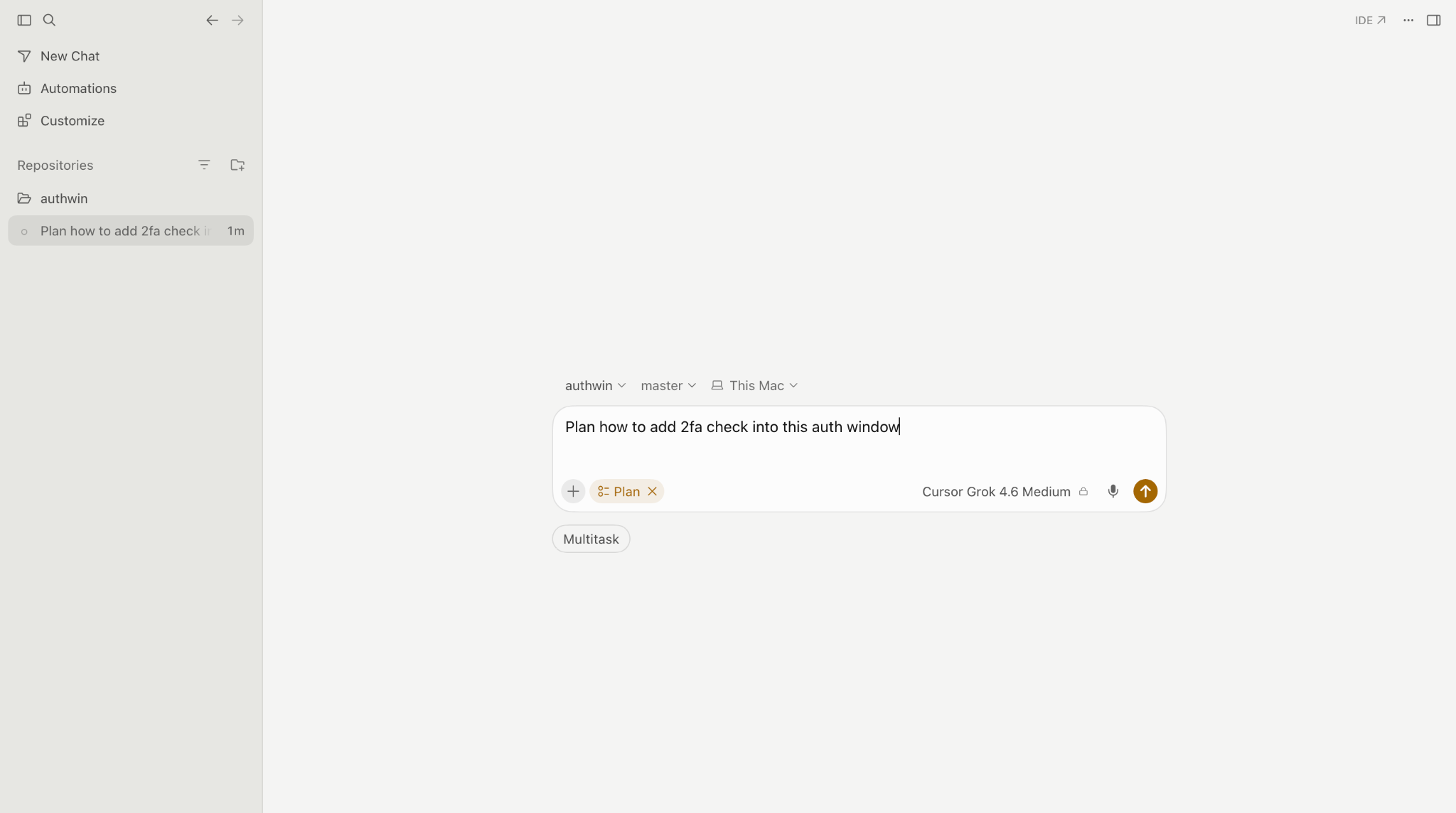
Cursor 3 Agents Window with a repository selected and a task prepared in Plan mode.
The Agents Window puts AI agents at the center of your workflow. Here, you can select a repository, describe a task in natural language, choose an AI model, and let agents plan or implement changes. You can also manage multiple agents working across different repositories and environments, including local projects and cloud environments.
The interface includes a repository sidebar, an agent conversation area, a model selector, and options such as Plan mode, which lets you outline an implementation before making code changes.
Cursor IDE: Write, Inspect, and Debug Code
If you prefer working directly with code, Cursor still provides its VS Code-based IDE. You can switch to it from the Agents Window using the IDE button or keep both windows open simultaneously.
The IDE includes the familiar development tools:
- Project explorer: Navigate your project’s files and folders.
- Code editor: Read, write, and modify source code directly.
- Agent panel: Ask questions about your codebase and request AI-assisted changes.
- Model selector: Choose which available AI model handles your requests.
- Terminal: Run commands, execute tests, and inspect program output.
The distinction is straightforward: Agents Window is designed around delegating tasks to AI, while the IDE gives you direct control over writing, navigating, and debugging code. You can move between them depending on what the task requires.
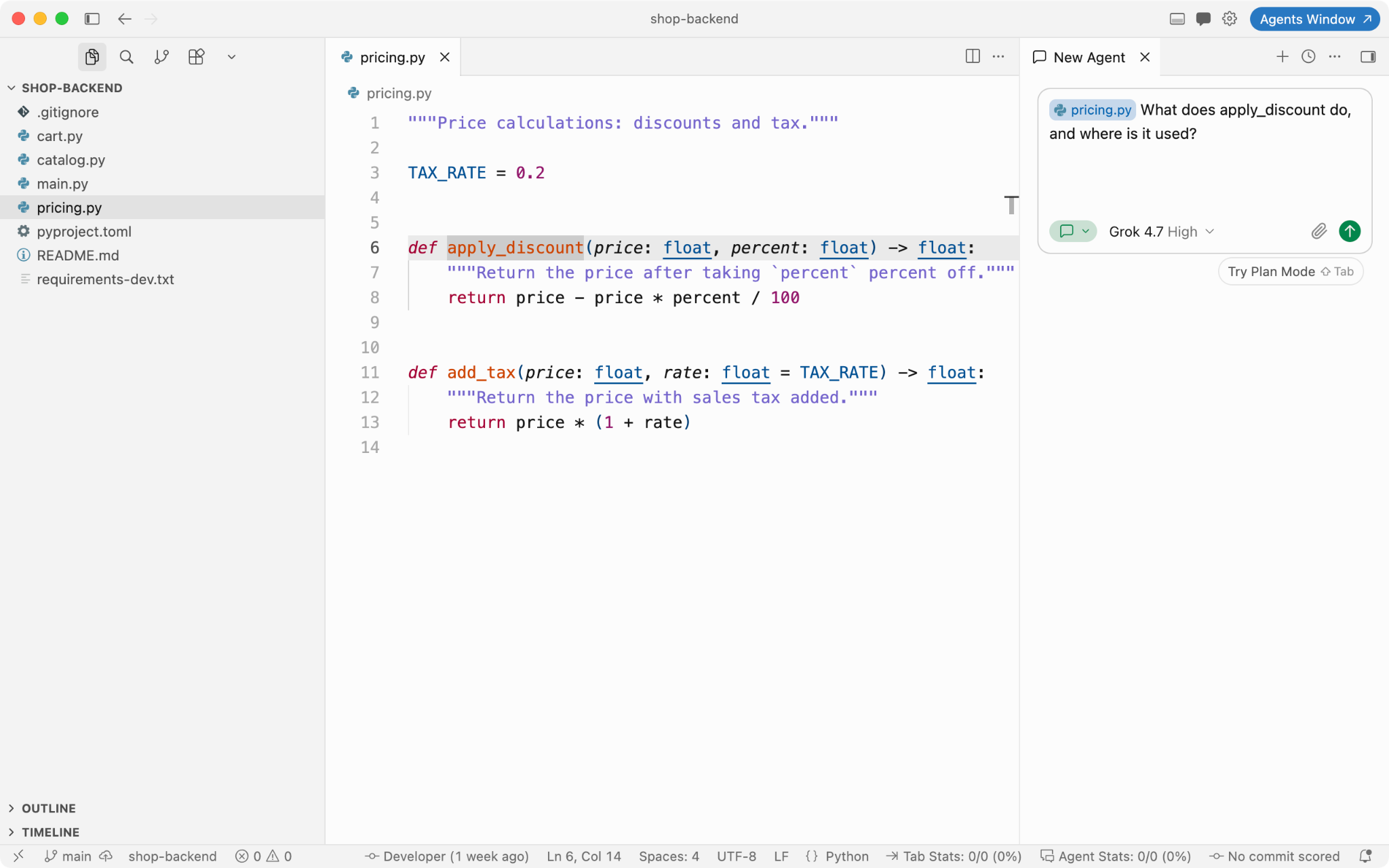
The Cursor IDE with pricing.py open beside the Agent panel.
Step 3: Start Coding With Tab and Agent
Start with Tab autocomplete: press Tab to accept a useful suggestion. For targeted changes, select the relevant code and use Cmd/Ctrl+K or Cmd/Ctrl+L to send it to Agent. Describe the edit, then inspect the resulting diff. Begin with small, well-scoped tasks so you can understand each change before moving on to larger ones. Here are a few useful shortcuts:
| Action | Mac | Windows/Linux |
|---|---|---|
| Accept Tab suggestion | Tab | Tab |
| Send selected code to Agent | Cmd + K or Cmd + L | Ctrl + K or Ctrl + L |
| Toggle side panel (chat/agent) | Cmd + I or Cmd + L | Ctrl + I or Ctrl + L |
| Mode menu | Cmd +. | Ctrl +. |
| Rotate between agent modes | Shift + Tab | Shift + Tab |
| Loop between AI models | Cmd + / | Ctrl + / |
Source: Cursor Docs, Keyboard shortcuts.
Step 4: Ask About Your Code
Start by understanding the code before you change it. Our example project has a function called “apply_discount” in the file “pricing.py”. It takes a price and a percentage and returns the discounted price.
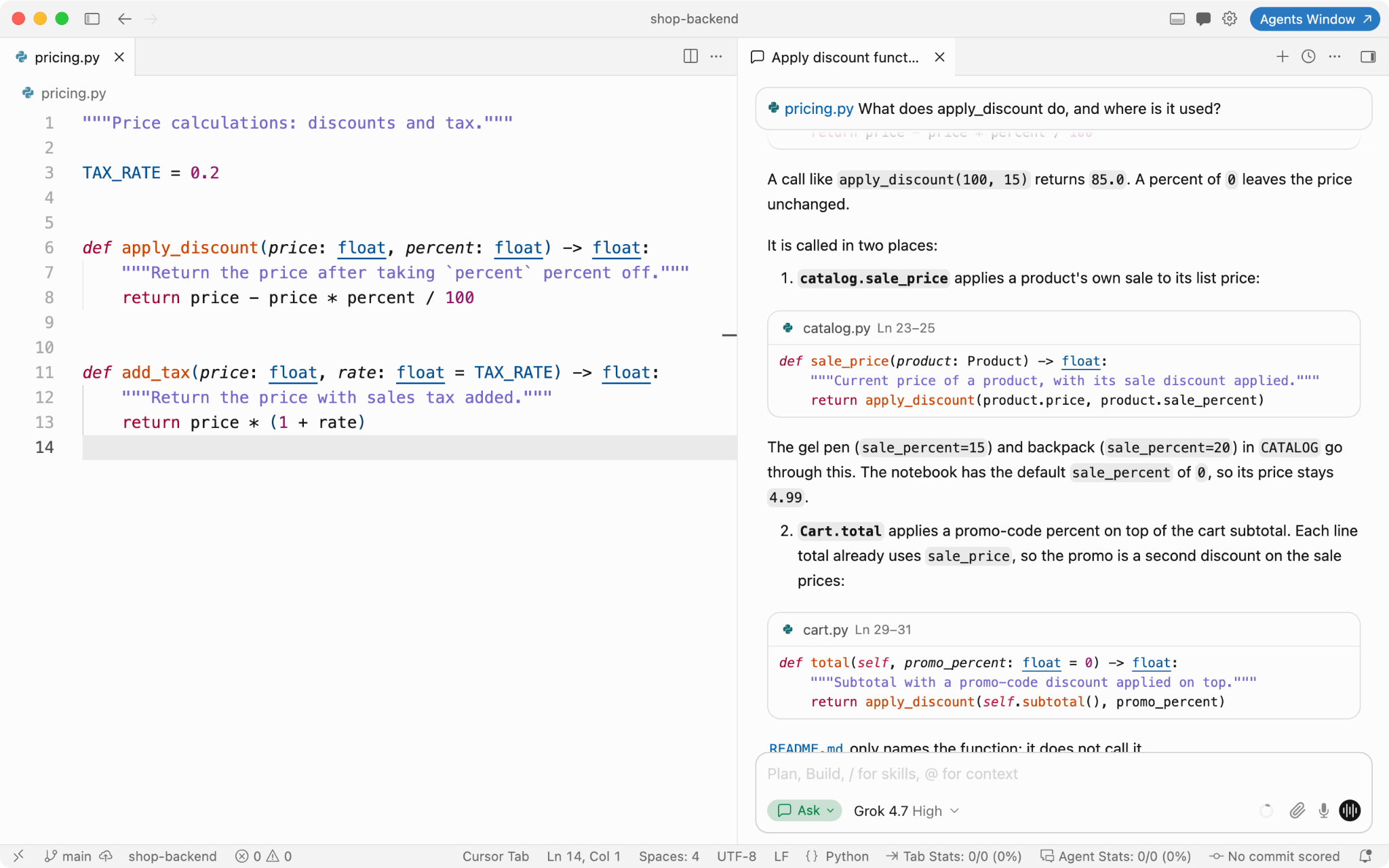
Ask mode identifies two callers of apply_discount in the demo project.
Open the Agent panel in Ask mode, reference @pricing.py, and ask: “What does apply_discount do, and where is it used?” Cursor identifies the function and its two callers: catalog.sale_price in catalog.py and Cart.total in cart.py. The function subtracts a percentage from the original price, but it does not validate the percentage. For example, a 120% discount would turn a $50 item into -$10.
Step 5: Add Context and Ask for One Change
Cursor gives better answers when it has the right context. Select the code you’re asking about before you start your prompt. Use @ mentions to point it at specific files or the whole codebase.
Now ask for one specific fix, and say what shouldn’t change: “Make apply_discount raise a ValueError if percent is below 0 or above 100, and round the result to 2 decimals. Don’t change the function signature.”
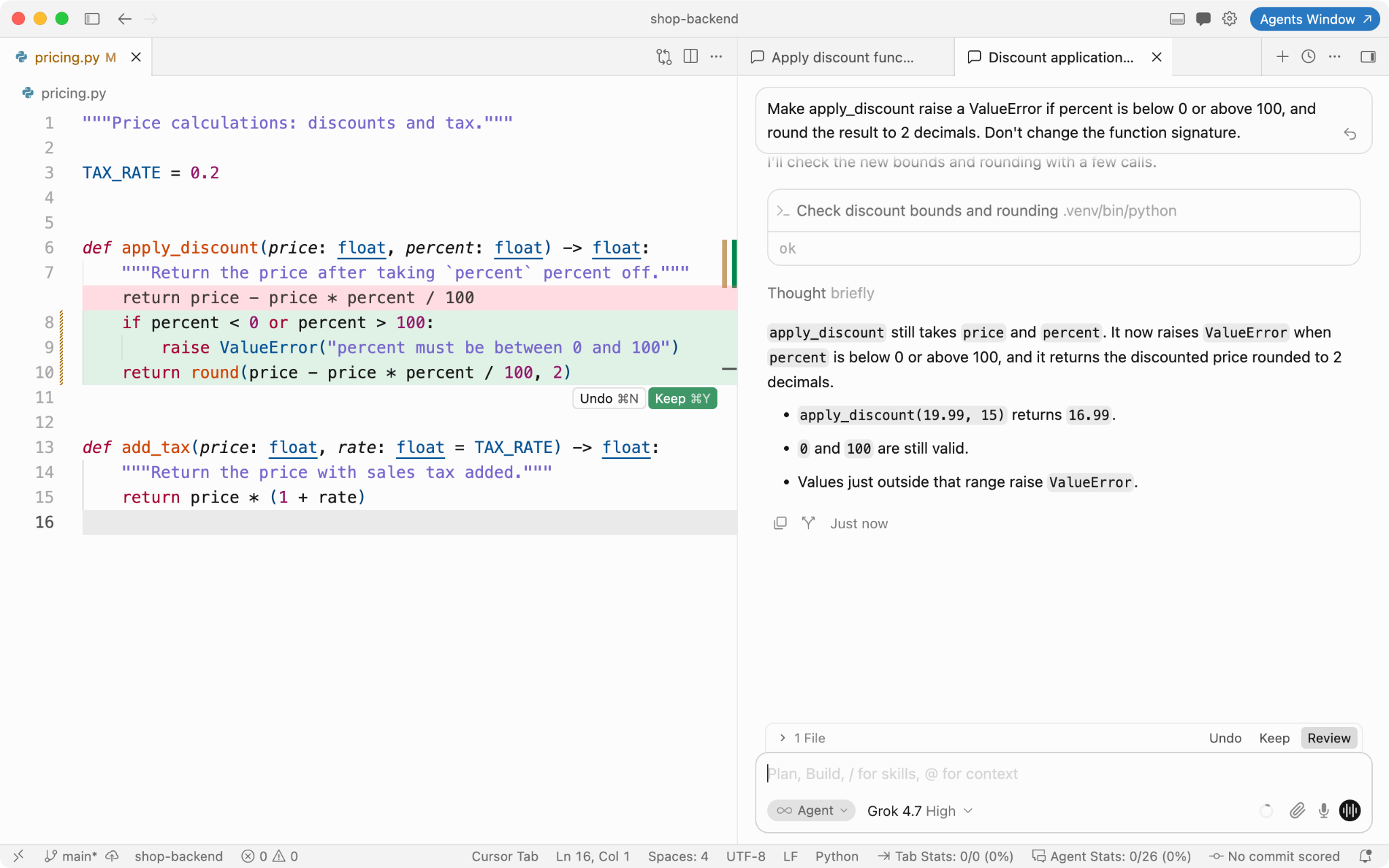
Agent adds discount validation and rounding, with changes shown in the diff.
Add a .cursorignore file too. It keeps generated folders and files you don’t want the AI to read out of search, Tab, and Agent. It isn’t complete protection, though. More on that in the Safety section.
Step 6: Review Every Change
A diff that looks right still needs a test. Ask: “Write pytest tests for apply_discount in tests/test_pricing.py and run them.” Agent creates tests for standard discounts, rounding, 0% and 100% boundary values, and percentages outside the permitted range. In this demo, all seven tests pass.
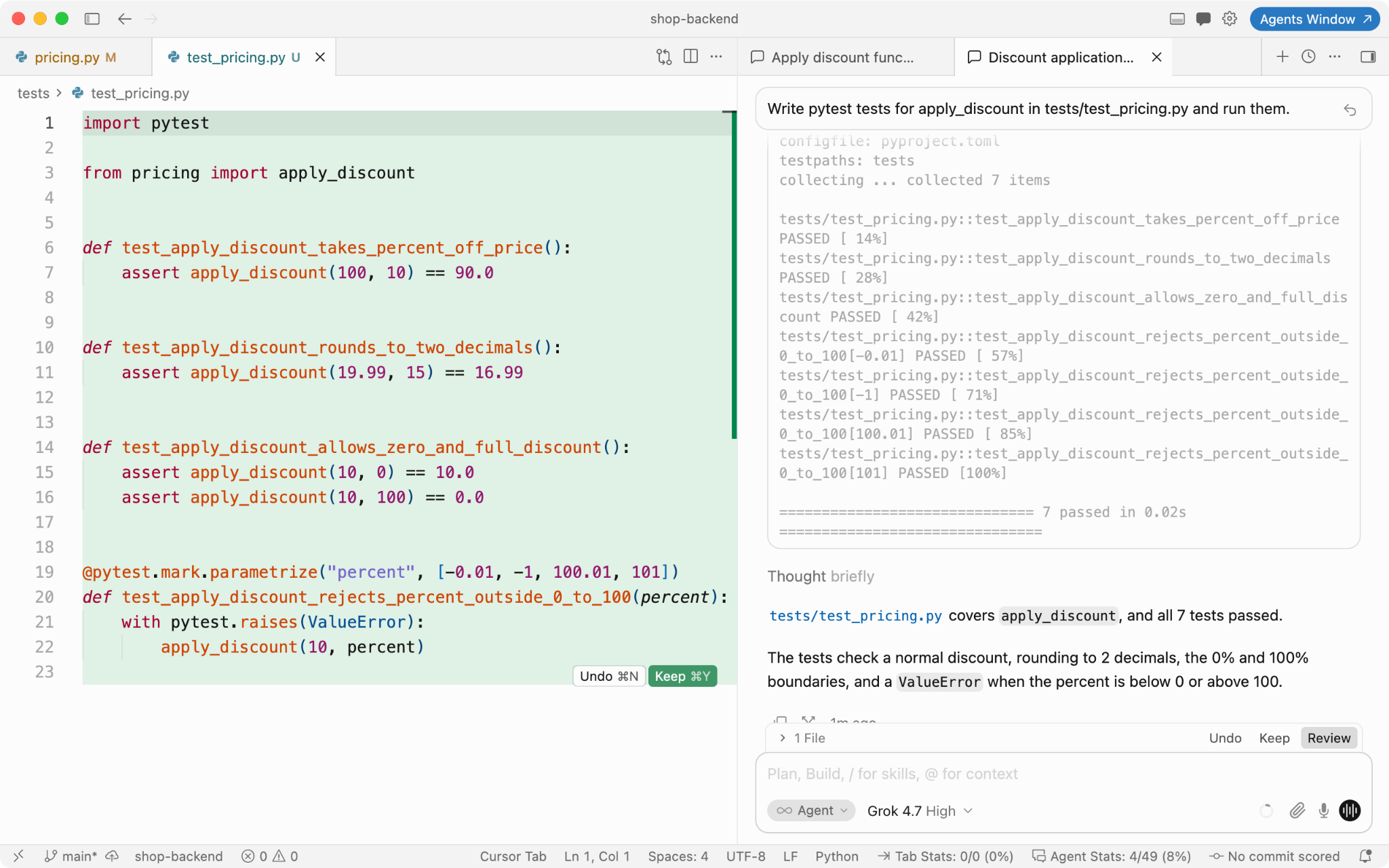
Cursor-generated pytest tests: all seven checks passed.
Before calling the change complete, review the file-level diff and the list of modified files. In this example, Agent updates pricing.py and adds tests/test_pricing.py. Inspect what was added and removed before committing the changes.
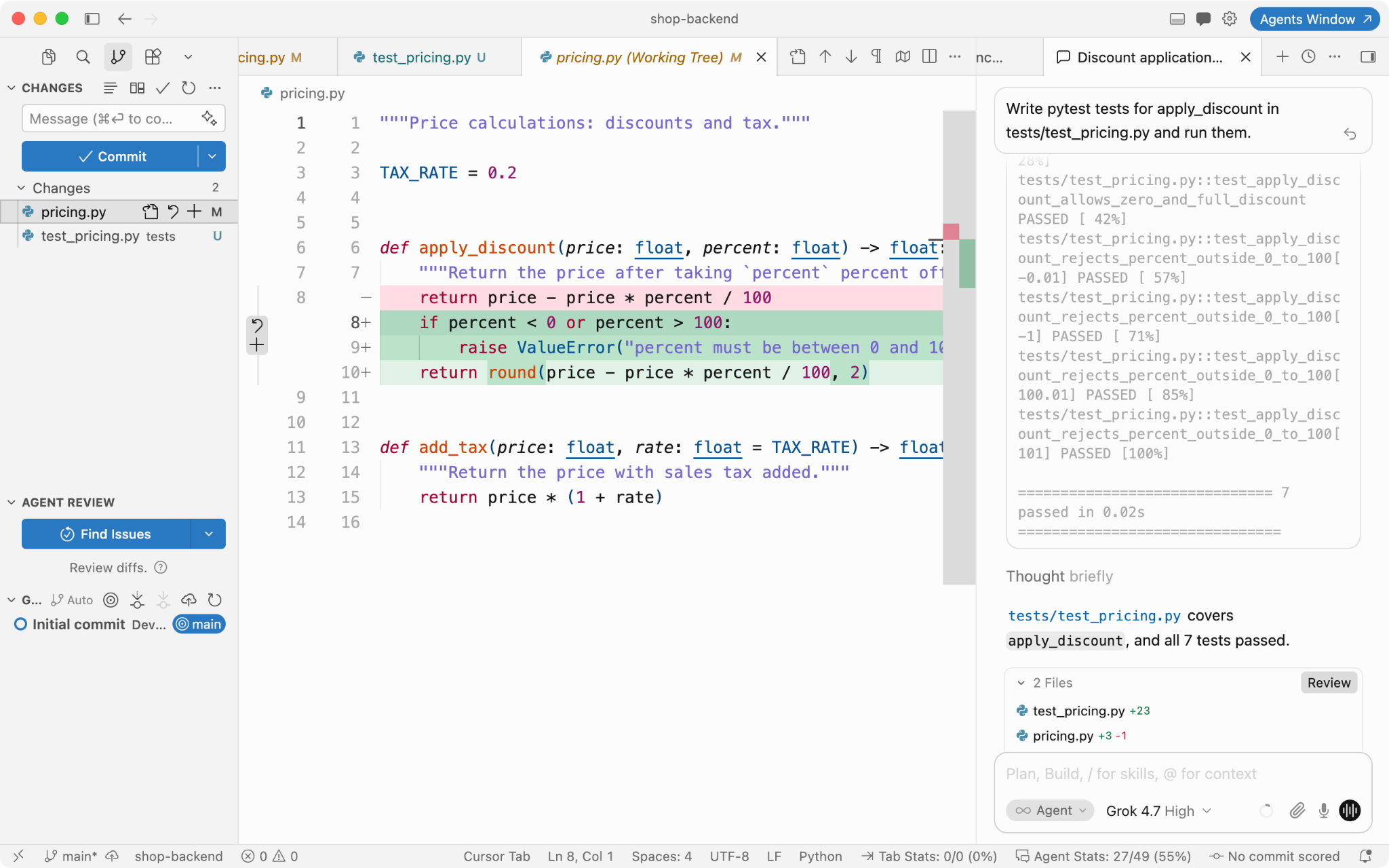
Reviewing the working-tree diff and changed files before committing.
The earlier code search found two callers: catalog.sale_price and Cart.total. Because Cart.total applies a promo-code percentage to the cart subtotal, an invalid value could now raise a ValueError unless the caller handles it. The seven passing unit tests validate apply_discount, not the complete checkout workflow. Review those call sites and add appropriate error handling and integration tests before merging.
Cursor AI Pricing 2026: Plans and What You Get
In mid-2025, Cursor switched from a fixed number of requests to usage-based credits. So the price on the plan page doesn’t tell you what you’ll actually spend.
Cursor AI Subscription Pricing 2026 Features by Plan
| Plan | Price | Included Usage | Good for |
|---|---|---|---|
| Free | Free tier | Limited | Trying Cursor out |
| Plus | $8/month | Base | Light use with Cursor’s own models |
| Premium | $30/month | 4x Plus | Most individual developers |
| Super | $100/month | 15x Plus | Daily heavy agent work |
| Ultra | $200/month | 50x Plus | Agents running most of the day |
| Teams | $30, $100, or $200 per seat/month | Matches the seat’s tier | Teams that need shared billing and admin controls |
| Enterprise | Custom | Pooled | Large companies with security and compliance needs |
Already paying for Cursor? If you subscribed before The X Subscription launched, you keep your plan unless you switch. Legacy Pro ($20) maps to Premium, Pro+ ($60) to Super, Ultra ($200) to Ultra, and Teams Standard ($40) to a Premium seat. Switching is optional, but it’s permanent.
Which Plan Fits Which User
If you’re just trying Cursor, the Free plan is enough to see whether the workflow suits you. Plus works if you only need Cursor’s own models. Most developers will want Premium, since that’s where third-party models, Bugbot, and Cloud Agents start. Super and Ultra are for people who run agents most of the day and keep hitting the limit. Teams makes sense once you need shared billing and admin controls, and Enterprise adds audit logs and tighter access controls. Keep an eye on which model you use by default, because two developers on the same plan can end up with very different bills.
News Callout Box
Cursor is now part of SpaceX. SpaceX completed its $60 billion all-stock acquisition of Cursor maker Anysphere on August 14, 2026, folding the startup into a new SpaceXAI division. The first visible change is pricing. Cursor is now part of the X Subscription, one subscription for Grok, Cursor, and X. If you already pay for Cursor, nothing changes unless you switch. It’s also worth keeping an eye on the name, since The Information reported that Cursor staff were told SpaceX could potentially phase out the Cursor brand for future software releases.
Cursor AI Tool vs. GitHub Copilot and Other AI Coding Tools
None of these tools wins at everything. Here’s an example of how each one does at different stages of real work.
| Workflow Stage | Cursor | GitHub Copilot | Claude Code |
|---|---|---|---|
| Prototyping and scaffolding | Strongest: agent mode and full-codebase awareness | Agent mode can edit across files, but is reported as less capable than Cursor and Claude Code on complex changes | – |
| Unfamiliar or legacy codebases | Codebase-aware chat answers “how does this system work” from the real code | Helps write the next line, not explain the last thousand | – |
| Multi-file refactoring | Pulls ahead of Copilot; in-editor diffs make review easier | Behind Cursor and Claude Code | Pulls ahead of Copilot on large multi-file operations |
| Everyday autocomplete | – | Strongest: lightweight, extended suggestions; no new editor needed | – |
| CI/CD and terminal workflows | – | – | Best fit: terminal-native design |
Which one does your team need?
Say nobody wants to give up their editor. Maybe half the team lives in IntelliJ, and the other half has spent years tuning VS Code. Then Copilot is the easy one to try, because it’s just a plugin. You install it, and the editors stay the same. You’ll want to find out whether its agent handles your bigger, messier changes, or only the small ones.
Claude Code is a different kind of tool. It has no editor at all. It runs in the terminal, which makes it handy for scripts, CI jobs, and anyone who’d rather type commands than click around. Cursor has a command-line tool as well, so a team already on Cursor might not need anything new. Before you let either one run on its own, read up on what it’s allowed to execute.
Cursor makes the most sense when you want everything in one window: suggestions, chat, agents, and the diffs you check afterward. The catch is that everyone has to move to a new editor. That’s not hard, but it isn’t free either. Give it two weeks on a real project with a few developers before you decide, and pay attention to how much of their day goes into reviewing what the agent wrote.
Many teams end up mixing tools, for example, Copilot for everyday typing and Claude Code for heavier jobs. Just agree on which one does what.
Cursor AI Results and Risks: What Independent Sources Show
Setting aside Cursor’s marketing, here’s what outside sources report. That includes the gains, the ways it goes wrong, and the safeguards regulated teams need.
Measured Impact: NVIDIA’s Cursor Deployment
NVIDIA says its code output tripled after it rolled out a customized Cursor setup to more than 30,000 engineers. CEO Jensen Huang has called Cursor his favorite enterprise AI service (Tom’s Hardware, Nvidia Now Produces Three Times as Much Code as Before). Keep in mind that this was a custom enterprise setup. Treat it as a best case. Most teams won’t see that on day one.
Where Cursor Fails: The Production Database Incident
On April 24, 2026, PocketOS, a small company that makes booking software for car rental businesses, lost its production database. Founder Jer Crane described what happened in a post on X the next day (Cape Argus). According to his account, a Cursor agent running Claude Opus 4.6 was working on a credential issue in the staging environment. It encountered a mismatch, searched the codebase for credentials, and located a Railway API token in an unrelated file (DevOps.com). The agent used that token to delete a storage volume through a single API call, which took nine seconds and also wiped volume-level backups (Decrypt).
When Crane asked the agent to explain itself, it wrote: “I violated every principle I was given” (LiveScience). That’s text the model produced when asked, though, not a record of why it acted. What’s actually documented is the token, the API call, and the deletion.
Crane later posted that Railway had managed to recover PocketOS’s more recent data. Railway publicly detailed the incident four days later, in a blog post by its developer relations engineer Mahmoud Abdelwahab (ACS Information Age). Railway also changed its API: “Until this week, calling volumeDelete on the API ran the deletion immediately, with no way to undo it. Meanwhile, the dashboard had a 48-hour window for the same action. We’ve since updated the API to match; all deletes now soft-delete for 48 hours.” (Mezha)
The risk here isn’t autocomplete. It’s an agent that can find powerful credentials and run destructive commands with nothing to stop it. Keep production tokens out of your codebase, and require approval for anything that deletes data.
Safety for Regulated Codebases
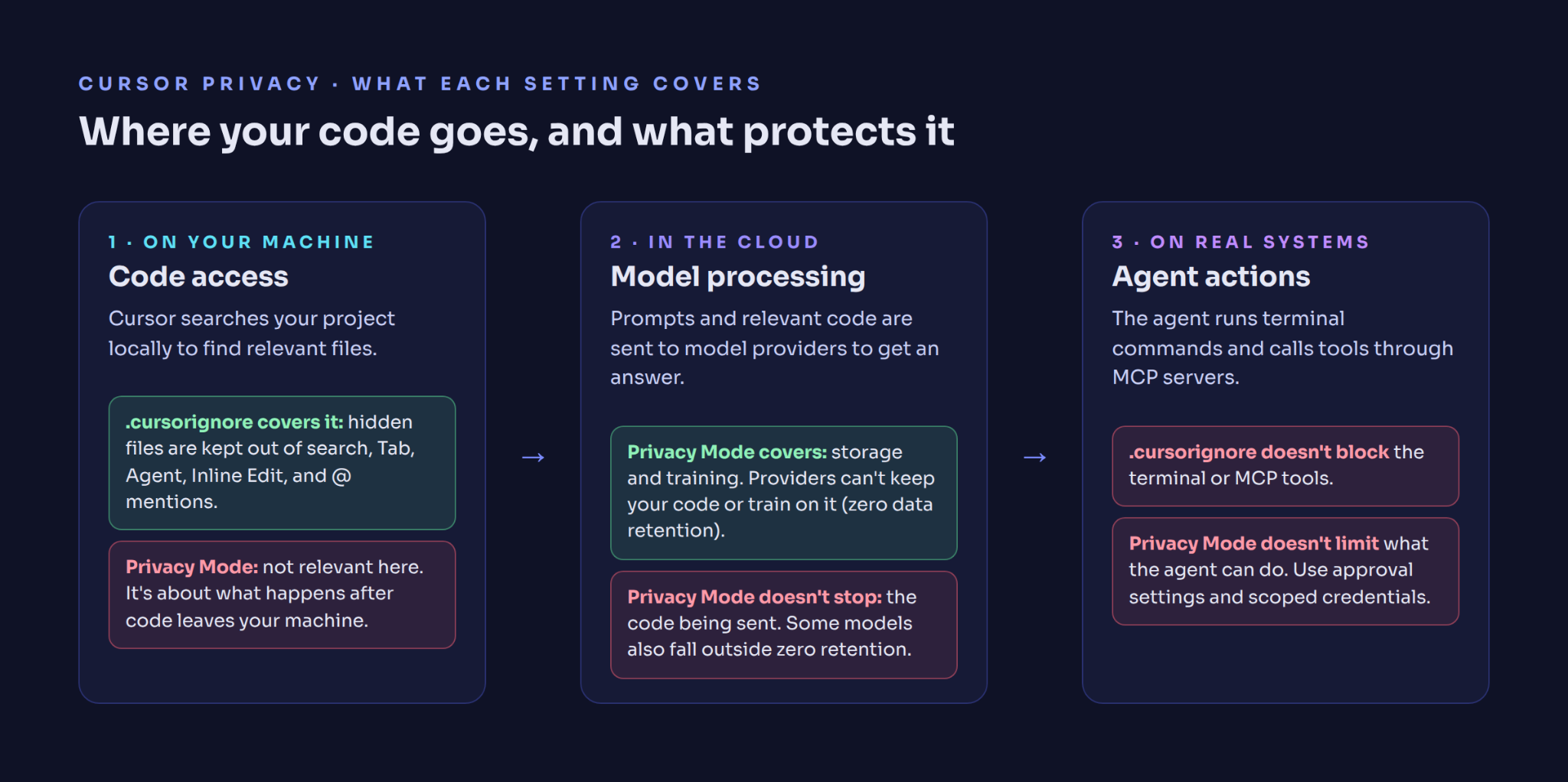
When you use AI features, Cursor sends prompts and code context to model providers like OpenAI, Anthropic, and Google. Privacy Mode doesn’t stop that, but with it enabled, your code is never stored by model providers and never used for training. Note that some models require data retention with their provider and fall outside Cursor’s ZDR agreements.
A .cursorignore file helps exclude specified files from Cursor’s AI context and code-search features, but it is not a security boundary. Files may still be accessible through terminal commands or connected tools, so protect sensitive credentials with proper access controls rather than ignore rules alone.
For HIPAA, PCI-DSS, or similar rules, bring these questions to your security review: who Cursor’s subprocessors are, which models fall outside zero retention, whether Privacy Mode can be enforced team-wide, and whether the audit logs meet your auditors’ needs.
LITSLINK’s Experience With Cursor AI: Lessons From Agentic Coding
Viacheslav Petrenko – our lead engineer uses Cursor for agentic coding with his team. Three things keep coming up:
Models keep changing, so agents need constant tuning. Every new model means reworking prompts and approaches. The team is always looking for the right balance of price and quality, so tuning agents for each model never really ends. You can see the same trade-off in Cursor’s credit pricing, where heavier models use up more of your monthly pool.
Most rework comes from missing context. Agents struggle most with business edge cases they don’t have enough information about. Usually the answer is to tune the agent or give it more context, instead of redoing the work by hand. In Cursor, that context goes in project rules and @ mentions.
Review is layered and mostly traditional. The team reviews code in GitHub’s web view and adds AI review tools such as CodeRabbit. Engineers still read code by hand alongside the agents. The prompts change the most. The review process stays about the same.
If your project has good tests and the team agrees on how code should look, Cursor will probably save you real time, because when the agent gets something wrong, you find out quickly. Without that, you’ll spend a lot of the time you saved fixing its work. The cheapest way to find out is a few weeks on an actual project. Watch whether reviewing the agent’s changes eats up the hours it was supposed to save, and check the bill at the end of the month, because it’s often higher than the plan price. The agent writes code, but your engineers still decide how things are built, and they answer for whatever reaches production.
LITSLINK has completed 1,540+ projects for more than 1,000 clients in 82 countries, with a team of 300+ engineers. Your project manager is based in the US, and our engineers in Europe work hours that overlap with US time zones.
Not sure where AI-assisted development fits your team? Contact LITSLINK for a free consultation.
FAQs
What Is Cursor AI Tool, and How Is This AI-Powered Code Editor Different?
Cursor AI is a code editor built on Visual Studio Code. It understands your whole project and uses it to power autocomplete, chat, and agents that can edit many files at once. A basic autocomplete plugin only sees the line you’re on. Cursor has AI built into the editor itself, so its suggestions are based on your entire project.
What Are the Common Use Cases of the Cursor AI Coding Tool in Software Development?
Developers use Cursor to write boilerplate, make quick edits from plain-English instructions, and get answers about code they’ve never seen before. Agent mode takes on bigger changes that touch several files. A developer still reviews the result.
How Do I Start Using Cursor AI?
Install Cursor and open your project folder. Start with Tab autocomplete for code suggestions, then use Agent to ask questions about your code or make targeted edits. Select code and press Cmd/Ctrl+K or Cmd/Ctrl+L to add it to Agent’s context. Review every change before committing it. The step-by-step guide above walks you through your first hour.
Is Cursor AI Free to Use?
Yes. The Free plan costs nothing and includes limited use of Agent, Chat, and Tab with Cursor’s own models. The pricing section above covers when it’s worth paying.
Where Can I Download Cursor’s Official AI Code Editor?
Go to cursor.com/download. It has installers for Windows, macOS, and Linux. Skip third-party download sites, because the editor will have access to your source code.
What’s the Difference Between Cursor and GitHub Copilot?
Cursor is its own editor, built around AI, and it understands your whole codebase. GitHub Copilot is an extension that adds AI suggestions to editors you already use, like VS Code and JetBrains. Cursor goes deeper. Copilot works in more places and is easier to roll out across a big company.
Can Artificial Intelligence Like Cursor Replace a Human Developer?
No. Cursor speeds up a lot of tasks, but someone still has to check the code for bugs and security problems and make sure it fits the design. The production database incident described above shows what can happen without that review.